
Instead of completely removing it from your PC, you can temporarily disable and block Smadav on Windows to perform certain operations on your computer. Disabling it will allow you to perform some actions blocked by SmadAV, such as installing or running certain software.
If you want to completely uninstall SmadAV, see this page for instructions on how to permanently remove it. However, if you choose to keep SmadAV but disable it temporarily, then proceed as follows.
Disable, temporarily block SmadAV
To disable and block Smadav on Windows, go to the notification area of the taskbar. If the SmadAV icon isn't visible there, click the small arrow to show hidden icons. The SmadAV icon should be there.
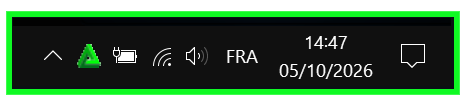
Right-click on the SmadAV icon (green triangle) and choose one of the available deactivation options:
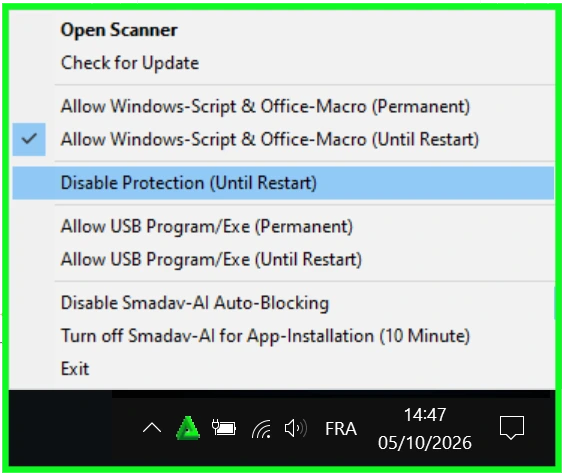
Options to temporarily disable SmadAV
SmadAV offers several deactivation options. We'll help you understand each one; however, be warned , proceed with caution. Whatever your reason for wanting to disable and block SmadAV on Windows, be aware that you risk exposing your computer and data to serious threats.
Disable Protection (Until Restart)
This option disables SmadAV's protection features until the next computer restart. If you enable it, SmadAV will remain disabled during use and will automatically reactivate when Windows restarts. However, you can reactivate it at any time by repeating the same steps.
Disable Auto-Blocking
This option allows you to disable the automatic blocking of suspicious items detected by SmadAV.
Turn off Smadav-AI for App-Installation (10 min)
This option allows you to switch to Administrator mode, which will automatically disable itself after 10 minutes. During these 10 minutes, you can install any application without it being analyzed or flagged by SmadAV. Once this mode is disabled, any suspicious application will again be flagged and blocked by SmadAV.
Exit
This option closes all SmadAV tasks running on Windows. It's equivalent to turning SmadAV OFF . However, just like " Disable Protection Until Restart ," SmadAV will automatically reactivate the next time you restart your computer. Choose one of these options to disable SmadAV.